Setting up calc method variables
You can define one or more variables for a calc method in a calc method library, so that users are prompted to specify values for the variables when using the calc method. When a user inserts the calc method into a sheet, or uses the calc method to overwrite another calc method in the sheet, Axiom Software first displays a dialog that prompts the user to specify values for the variables. After the user specifies the values, the insert or overwrite operation continues, and the values are placed in the appropriate cells.
For example, most calc methods require the user to specify an account code. Instead of making the user identify the appropriate cell in the sheet and then enter or select an account code after the calc method has been inserted, a calc method variable can be used to prompt the user to select the account code as part of the insertion process.
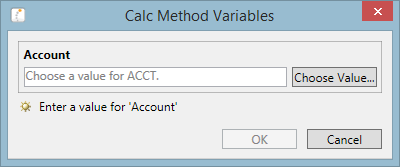
Example calc method variables in the Desktop Client
When you define a calc method variable, you specify the following:
- The name of the variable, to be displayed on the calc method form to identify what the user is entering or selecting.
- The type of variable—for example, whether the user is manually entering text or a number, or whether the user is selecting from a predefined list.
- The relative location of the variable, to determine where the specified value is placed in the calc method.
- Whether the user is required to specify a value for the variable.
- Whether the variable only displays when inserting.
All defined variables for the calc method are displayed in the same dialog. You can specify the order in which the variables are presented on the form.
Calc method variables apply when users insert or change (overwrite) calc methods in a plan file. Variables are ignored when calc methods are inserted via an Axiom query.
NOTE: The normal change rules do not apply to calc method variables. If the new calc method has a variable defined, the variable value specified by the user always overrides the existing cell contents. However, if the user does not specify a variable value (if the variable is not required and the user leaves the entry blank, or if the variable is excluded from the change operation because it is set to Insert Only), then the normal change rules apply to that cell.
If a plan file is form-enabled, then users will also be prompted to select variable values when they insert calc methods using the Add Rows command. For more information, see Inserting calc methods in an Axiom form. Axiom forms do not currently support changing calc methods on existing rows, so calc method insertion is the only opportunity for users to specify variable values in this context.
To define variables for a calc method:
You can define variables when you are creating a new calc method or editing an existing calc method. The following procedure assumes that you are editing an existing calc method. The same user interface is available when you are creating a new calc method.
NOTE: Several variable settings support use of cell references. For more information, see Using cell references with calc method variables.
-
Optional. Insert the calc method into the sheet and then select the relevant rows (or select an instance of the calc method that is already in the sheet).
This step is not required, but having the calc method selected in the sheet allows Axiom Software to show you exactly where the variable value will be inserted into the calc method. (When creating a new calc method, you would have selected the applicable rows anyway as part of the creation process.)
- On the Axiom tab, in the Advanced group, select CM Library > Manage Calc Methods.
-
In the Manage Calc Methods dialog, select the calc method and then click Edit.
The Edit Calc Method dialog opens, displaying the settings for the selected calc method.
-
In the Calc method variables section, click Add variable
 .
.A new variable row is added to the grid.

-
In the Name box, type a name for the variable. A cell reference can also be used, enclosed in brackets—for example,
[A5].The name displays on the calc method form, and tells the user what value is being specified. The name can be just a term (“Account”) or it can be an instructive phrase (“Select an account”).
-
In the Type box, select the type of variable.
-
String: The user can enter any string value.
-
Integer: The user can enter any whole number.
-
Decimal: The user can enter any numeric value, including decimals.
-
List: The user can select any item in a defined list. List values are presented to the user in a drop-down list.
-
Grid: The user can select any item from a specified table column (for example, ACCT.ACCT to select from a list of accounts). Column values are presented in the Choose Value dialog, using a searchable grid.
-
Related Column Value: This variable type is not presented to the user. It is used to return a related column value for a parent Grid variable, so that the value can be referenced within the calc method. The Related Column Value variable must be placed underneath its parent Grid variable. For more information, see Returning related column values into calc methods.
-
GUID: This variable type is not presented to the user. It generates a globally unique identifier (GUID) and places it into the designated location when the calc method is inserted. For more information, see Generating a unique ID when inserting a calc method.
-
-
If the variable type is List or Grid, define the list of allowed variable values.
 List: Define the list values
To define the list of allowed values for a List variable, click the [...] button to the right of the type selection.

In the List Items dialog, type each item on a separate row. To create a new row, use the
Enterkey.Cell references can also be used to define list items. Each cell reference must be placed on its own row, enclosed in brackets.
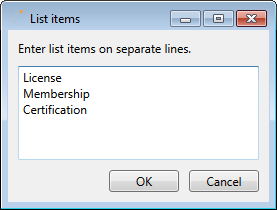
Example list definition
Grid: Select the source column
To specify the column to use for the Grid variable, click the [...] button in the Column Name field.

The Select Value Column dialog opens.
-
In the left-hand side of the dialog, select the column. You can change the table view and filter the list to find the appropriate column. Only columns from reference tables or document reference tables can be used.
By default, the user can select any value in this column. If desired, you can define a filter to limit the list of values. In the Column Filter box, type a filter criteria statement, or click the Filter Wizard button
 to create one. A cell reference can also be used, enclosed in brackets—for example,
 [A5]. -
In the right-hand side of the dialog, select any additional columns that you want to present to users when they select a value.
NOTE: This option is only available when the selected column is a key column. If the column is a grouping column, then no additional columns can be shown. When the user selects a value, the list will be the list of unique values in the grouping column.
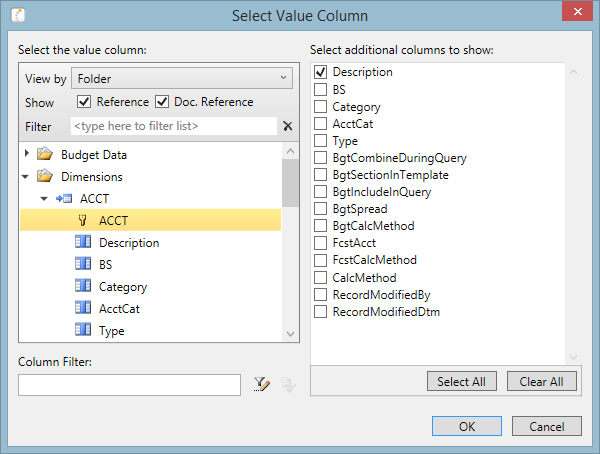
Example column selection
-
-
In the Relative Location box, enter the location where the variable value will be placed, relative within the calc method.
The location is specified as follows:
<ColumnLetter><CalcMethodRow>.For example:
- If the value should be placed in column B of the calc method, within the first row of the calc method, enter the following:
B1. If the calc method is a single-row calc method, the calc method row is always 1. - If the value should be placed in column B of the calc method, but within the third row of the calc method, enter the following:
B3.
The entry for the calc method row must be valid within the context of the current calc method. For example, if the current calc method is a three-row calc method, then the only valid entries for the row are 1, 2, and 3. If you attempt to specify B4 for the three-row calc method, the entry will be rejected as invalid.
If the calc method rows are selected in the sheet (as described in step 1), then you can click Show location within the current spreadsheet selection
 , and the cursor will move to the location where the value would be placed.
 - If the value should be placed in column B of the calc method, within the first row of the calc method, enter the following:
-
If you want the user to be required to specify a value for the variable, select the Required check box.
If the variable is required, then users must specify a value in order to insert the calc method or use it to overwrite another.
If the variable is not required, then users can leave the variable blank, resulting in the corresponding cell being blank when the calc method is inserted. If the calc method is overwriting another calc method, the original cell contents are retained if the variable is left blank.
You cannot specify a default value for a variable; either the user specifies a value, or the cell is left blank.
-
If the variable should only display when the calc method is inserted by a user, select the Insert Only check box.
Some variables, such as selecting an account for the row, should only be displayed when the calc method is inserted. When a user changes an existing row using the calc method, the existing account should be retained.
If Insert Only is selected, then the variable will not display when a user performs an overwrite with the calc method, or when a user double-clicks an existing row in the sheet to edit the variable values. If Insert Only is not selected, then the variable will display in all cases.
If all of the variables for the calc method are set to Insert Only, then a form will only display when the calc method is inserted.
-
Repeat steps 4-10 to define any additional variables for the calc method.
When the calc method form is displayed to the user, variables are listed in the order that they are listed in this grid. You can change the order of variables by selecting a variable row and then clicking the Move variable uparrow or the Move variable down arrow.
NOTE: The presence of a Related Column Value variable restricts how variables can be moved up and down, because the Related Column Value variable must be underneath its parent Grid variable. If you have a Grid / Related Column Value pair, and you want to change their order in the list of variables, then you must move the other variables up or down in the list instead of attempting to move the pair.
If you want to delete a variable, select the variable row in the grid and then click Remove variable
 .
. - Click Apply to save your changes to the calc method (or OK if you are finished editing the calc method).
Sorting behavior for column values
If the variable uses a column value, the list of values is sorted based on the source column. In some cases the values may not be displayed as expected:
-
If the column is from a driver table, the values will most likely not be displayed in the order they are stored in the driver file. When the values are saved to the database from the driver file, they are sorted based on the key column of the table (column A of the driver sheet).
-
If the column is a string column that contains numeric values (values that are all numbers and values that start with numbers), Axiom Software will attempt to sort these values in numeric order. Values that start with letters will then be sorted in alphabetical order.
Opening the calc method form on double-click
If desired, you can configure the sheet and the calc method to allow users to open the calc method variables dialog by double-clicking existing calc methods in the sheet. Users can then change existing values using the form. Enabling this behavior requires the following:
- The template that the plan file was built from must be set up for template validation. See Template validation.
- The Axiom Double-Click setting must be enabled for the sheet on the Control Sheet. This setting is located in the Sheet Options.
- At least one of the calc method variables must not have the Insert Only option checked. If all variables have Insert Only enabled, then they only apply during calc method insert and will not display on double-click.
This behavior only applies when using standard spreadsheet plan files. Form-enabled plan files do not support the ability to reopen the calc method variables dialog on double-click.
