Generating a unique ID when inserting a calc method
GUID variables can be used to generate a globally unique identifier (GUID) when a calc method is inserted. This is a special variable type that does not display to the user in the Calc Method Variables dialog—it is only used to generate the ID and place it into the inserted calc method. For example, when inserting calc methods for planning new hires, you may want to generate a unique ID for each new hire.
Variable behavior
GUID variables do not display in the Calc Method Variables dialog. If other variables are defined for the calc method, then the variables dialog is shown to the user but the GUID variable is omitted. If the GUID variable is the only variable, then the variables dialog is not shown to the user.
When the calc method is inserted, the designated Relative Location for the GUID variable is populated with an automatically generated GUID string.
For example, imagine that you have the following calc method configuration:
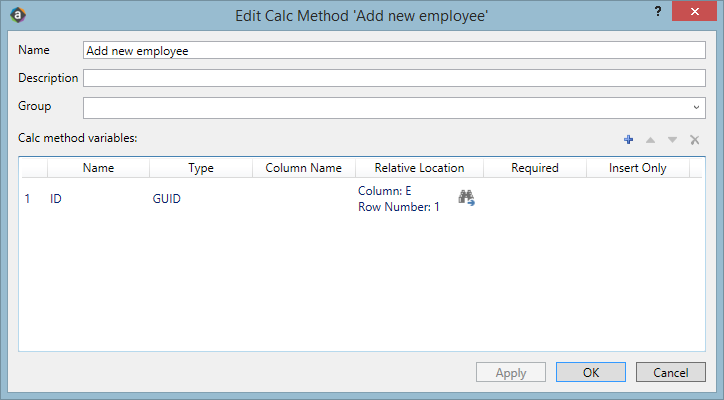
When the user inserts this calc method, no variables dialog displays to the user. Instead the calc method is directly inserted, and a GUID is generated and placed in column E, in the first row of the calc method.
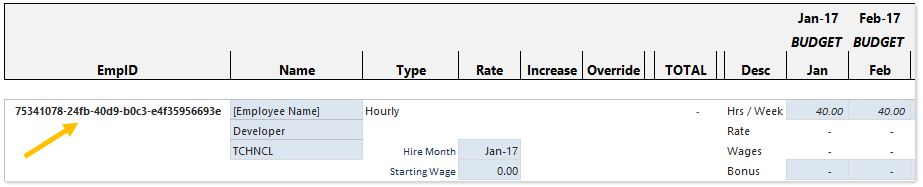
The ID is alphanumeric with dashed sections, such as: a635e1cb-4001-46bd-a427-a704e29b58b8. This format cannot be customized, though you can manipulate the format as needed in the spreadsheet after insertion. If you are saving the generated ID to the database, the destination column must be a string column with a minimum width of 36.
The GUID is intended to be a static value for the inserted row. If Axiom Double-Click is enabled and users can double-click the calc method to change other variable values, this action will not cause the GUID to change.
If users are allowed to change the calc method applied to a row, and the new calc method also has a GUID variable with the same name as the original calc method variable, then the existing GUID value will be retained during the change calc method operation. However, if the GUID variable in the new calc method does not have the same name, then it will be treated as a new insertion and a new GUID will be generated.
Variable setup
To generate a unique ID on calc method insertion, use the GUID variable type and complete the variable properties as follows. For more information on defining calc method variables, see Setting up calc method variables.
| Item | Description |
|---|---|
| Name |
The name of the variable. Although the variable name is still required for GUID variables, it is primarily for descriptive purposes, to indicate the purpose of the variable to other calc method administrators. GUID variables do not display in the Calc Method Variables dialog, so end users will not see the name. NOTE: If you intend to allow users to change calc methods, and you want the GUID to remain constant during the change operation, the names of the GUID variables must be the same in the original calc method and the new calc method. |
| Type |
Select GUID. |
| Relative Location |
The location to place the variable value, relative within the calc method. The location is specified as follows: For example:
The entry for the calc method row must be valid within the context of the current calc method. For example, if the current calc method is a three-row calc method, then the only valid entries for the row are 1, 2, and 3. If you attempt to specify B4 for the three-row calc method, the entry will be rejected as invalid. If you highlighted the full range of the calc method in the sheet before selecting to edit the calc method, then you can click Show location in the current spreadsheet selection |
 , and the cursor will move to the location where the value would be placed. (If you are defining a variable as part of creating a new calc method, then you always have the calc method selected.)
The other variable properties do not apply to GUID variables.
