AX2160
Several calc method variable settings support use of cell references. Instead of "hard-coding" a value within the calc method properties, you can point to a cell location in the file. This cell location can contain regular text, or it can use a formula to dynamically derive a value, or it can contain a range that Axiom Software will use to dynamically generate a list of choices.
The following settings support cell references:
- The variable name
- If the variable type is List, the list items
- If the variable type is Column Value, the column filter
To use a cell reference, enter the reference into the setting like so:
[A5]
or
[Sheetname!A5]
Cell references are always absolute. An entry of [A5] always points to cell A5, regardless of the placement of the inserted calc method or the target cell for the variable. However, you can use a formula in cell A5 to dynamically change the contents—for example, depending on the current insertion point location. The workbook is calculated before the calc method form opens.
For list items only, cell ranges can also be used.
Variable name
Enter the cell reference into the Name field. When the form is presented to the user, the name of the variable will be derived from the referenced cell.
List items
Enter the cell reference into the List items dialog on its own line, just as you would if it was a hard-coded value. The list can contain multiple cell references and/or values, the results of which will all be joined to create the final list.
For list items only, the referenced cell can contain a range, such as List!B7:B27 (without brackets). The range can be hard-coded within the cell as text, or it can be the result of a formula. In this case, Axiom Software takes all values in the range, and adds them to the list as individual choices.
If desired, you can also enter the range directly within the List items dialog. In this case, use brackets: [List!B7:B27].
The range must be one dimensional—meaning either one column wide and several rows tall, or several columns wide and one row tall. If the range is a block, it is ignored.
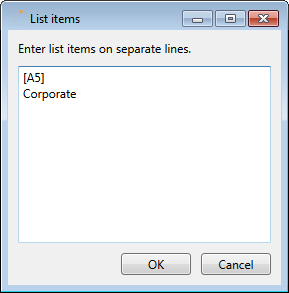
Example list items with cell reference
In this example, the contents of cell A5 will be combined with the hard-coded item "Corporate" to create the full list of choices. If cell A5 contains a range, then the values in that range are added to the list.
Column filter
Enter the cell reference into the Column Filter box when selecting the column to use for the list. The referenced cell must contain a full, valid filter.
If you are using a cell reference for the column filter, the only entry in the Column Filter box must be the cell reference. For example, you cannot use a "mixed" configuration where part of the filter is defined in the box and the remaining part is read from the cell reference.
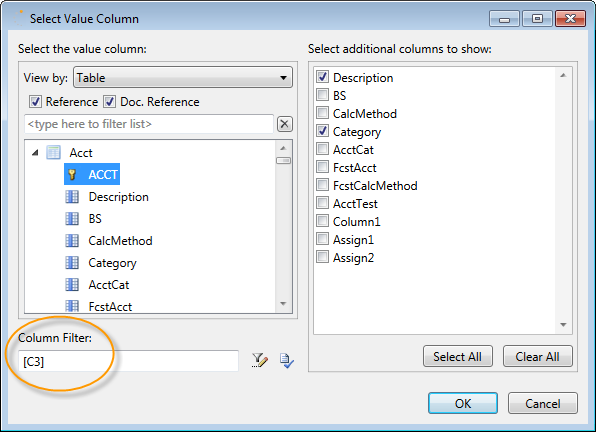
Example column filter with cell reference
In this example, the column filter is being read from cell C3. If cell C3 contains Acct.Category='Revenue', then when the form is presented to the user, the account list will be filtered to only show revenue accounts.
