Returning related column values into calc methods
Related Column Value variables can be used to bring in additional column values based on the user's selection for a parent Grid variable. This is a special variable type that does not display to the user in the Calc Method Variables dialog—it is only used to return additional related values into the calc method.
For example, imagine that you have a Grid variable for the user to select an account from Acct.Acct. That selection defines the account for the current calc method. In addition to displaying the account number, you also want to display the account description in the calc method. You can define a Related Column Value variable that returns the associated value from Acct.Description for the selected account. Both values are then placed in the calc method when the user interacts with the calc method form.
The Related Column Value variable provides an alternative to using GetData functions to return these associated values. Avoiding use of unnecessary GetData functions can improve file performance.
Variable behavior
When a calc method is inserted or changed, Related Column Value variables do not display in the Calc Method Variables dialog. Once the user has made their selections and clicked OK, the designated Relative Location for the Related Column Value variable is populated with the appropriate value from the specified column for the variable, based on the selected value from the parent Grid variable.
For example, imagine that you have the following configuration:

In this example, the Related Column Value variable named Description is associated with the Grid variable named Account. This association is based on location; Related Column Values are always placed directly after their parent Grid variable. The Description variable is configured to return the value for Acct.Description based on the selected account for the Account variable.
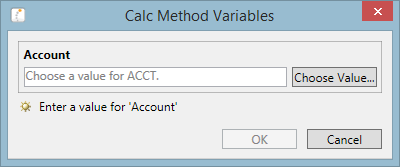
When the Calc Method Variables dialog is presented to the user, only the Account variable displays:
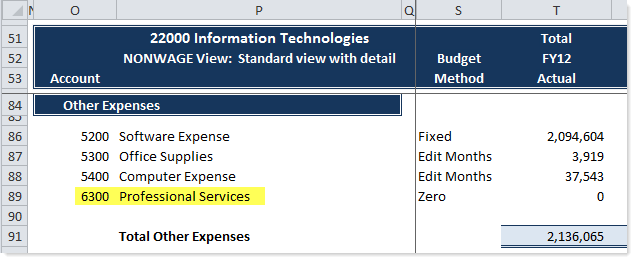
Once the user selects an account and clicks OK, the selected account is placed in the specified cell location for the Account variable, and the associated description from Acct.Description is placed in the specified cell location for the Description variable. In the following example, the user selected account 6300, and the description of that account is "Professional Services".
Variable setup
To create a Related Column Value variable, insert a variable underneath the relevant Grid variable. Each Grid variable can have one or more Related Column Value variables underneath it. The Edit Calc Method dialog enforces these rules and prevents adding or moving a Related Column Value variable in any other location.
The following variable properties apply to Related Column Value variables. For more information on defining calc method variables, see Setting up calc method variables.
| Item | Description |
|---|---|
| Name |
The name of the variable. Although the variable name is still required for Related Column Value variables, it is for descriptive purposes only, to indicate the purpose of the variable to other calc method administrators. Related Column Value variables do not display in the Calc Method Variables dialog, so end users will not see the name. |
| Type |
Select Related Column Value. This selection is only allowed when the variable is located underneath a Grid variable. No other variable types can be placed between a Grid variable and a Related Column Value variable. |
|
Column Name |
The name of the column for the variable, using Table.Column syntax. Click the Choose Column button [...] to select a column. The column must be from the same table as the parent Grid variable, or a lookup table. For example, if the parent variable selects a variable from |
| Relative Location |
The location to place the variable value, relative within the calc method. The location is specified as follows: For example:
The entry for the calc method row must be valid within the context of the current calc method. For example, if the current calc method is a three-row calc method, then the only valid entries for the row are 1, 2, and 3. If you attempt to specify B4 for the three-row calc method, the entry will be rejected as invalid. If you highlighted the full range of the calc method in the sheet before selecting to edit the calc method, then you can click Show location in the current spreadsheet selection |
 , and the cursor will move to the location where the value would be placed. (If you are defining a variable as part of creating a new calc method, then you always have the calc method selected.)
NOTE: Required and Insert Only do not apply to Related Column Value variables, because they do not display to the user. The Related Column Value variable will be completed or not depending on whether its parent variable is completed. The parent variable dictates whether the variables are required, and whether the variables are only completed on insert.
Design considerations
When using a Related Column Value variable, keep in mind that the related column value is only updated when the parent value is changed using the calc method form (the Calc Method Variables dialog). If the parent value is changed by editing the sheet directly, then the parent value and the related column value will be out of sync.
Consider the previous example of the Account variable and the Description variable. Imagine that the user inserts a new calc method and selects account 5000 which is Travel. These values are placed in the sheet along with the new calc method. If the cell containing the account number is editable, the user could change this row to use a different account number. The Travel description would then be out of sync with the new account.
To prevent this mismatch, the cell containing the parent value (in this example, the account cell) should not be editable. If you need to allow the user to edit the parent value after the calc method has been inserted, then you should set up the calc method and template as follows:
-
Insert Only should not be selected for the parent Grid variable. This allows the variable to apply not only when the calc method is inserted, but also on calc method change and on double-clicking the calc method.
- Axiom Double-Click should be enabled for the sheet. This means that once a calc method has been placed in the sheet, the user can double-click it to open the calc method form and make new selections. Because the value for the parent variable is changed using the calc method form, the value for the Related Column Value variable will also update.
NOTE: This design only applies to spreadsheet plan files. When using form-enabled plan files, it is not currently possible to reopen the calc method variables dialog on double-click. In the Axiom form environment, you should consider either not allowing the user to edit the parent value after insertion, or returning the related column value using a different approach so that the values remain in sync after the parent value is changed (such as using a GetData function or an update-only Axiom query).
