AX1107
Process overview
Process management can be used to manage and track an Axiom-related process from end to end—encompassing all aspects of the process, including steps that may need to be completed outside of the system.
The following provides an overview of how processes are defined, performed, and tracked.
Defining a process
In order to use process management, you first create a process definition. This file defines the properties of the process, such as:
- Name and description (for example "Annual Rollover")
- Process owner
- Steps in the process
- Owners and due dates for each step
- Associated files and features for each step
- Notifications to be sent during the process
The following screenshots show an example process definition.
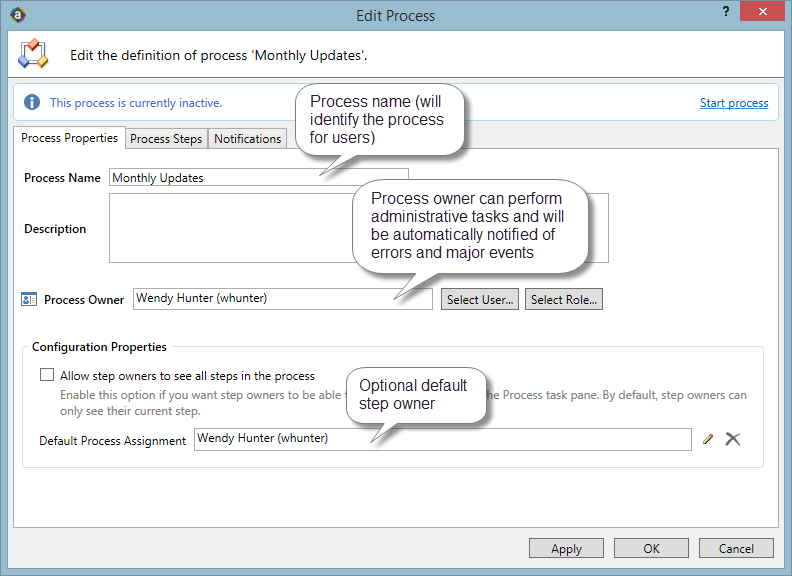
Example general properties for the process
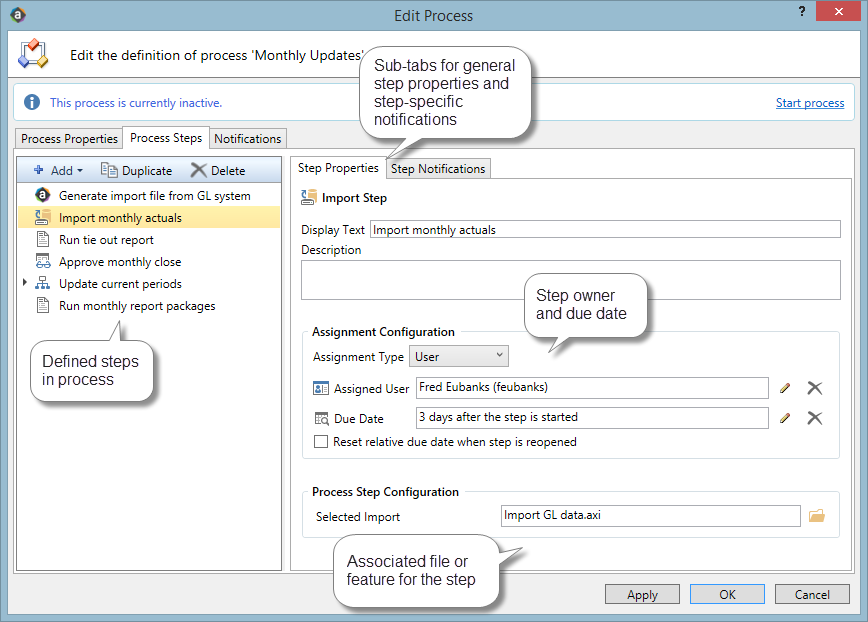
Example steps for the process
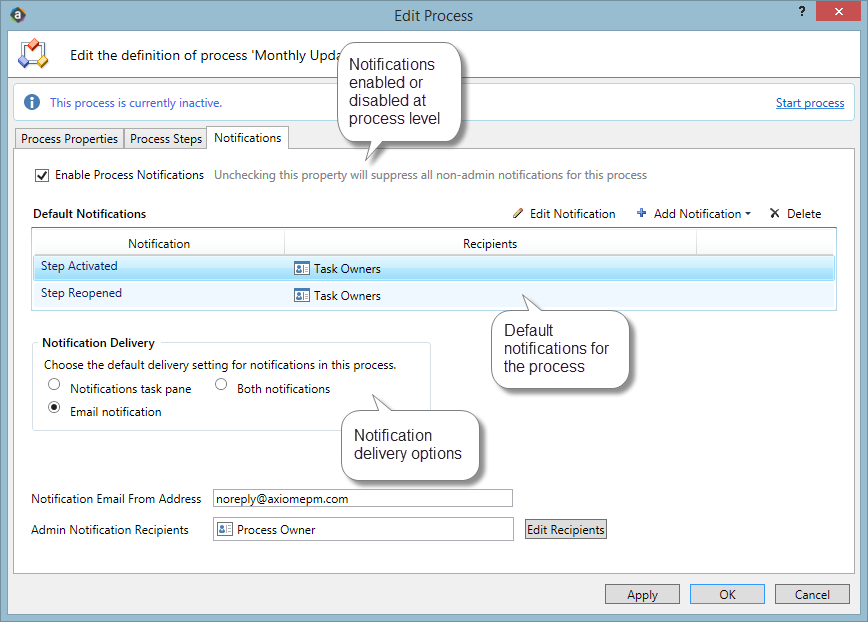
Example notifications for the process
The process definition is a file that is stored in the Process Definition Library (or for processes that belong to a file group, within the file group's Process Definitions folder). The process definition can be subsequently edited and "activated" as needed, whenever you need to perform and track the process. When a process is activated, a new incarnation of the process is created to track the details of that particular process instance. This ensures that you always have a history of each time the process is performed, including who completed each step in the process and when.
Performing a process
When you are ready to perform a process, you "activate" or start it. The first step in the process is made active, and a notification is sent to the assigned step owner (or owners). This default notification gives the user information such as the process name, the step name and description, and the due date. You can optionally customize the notifications for a process, and you can disable them if desired.
When a process is active, the process owner and all administrators can see the process in the Process task pane. Other users only see the process if they are the assigned owner of a step in the process.
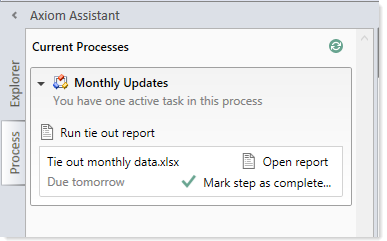
Example process task pane for a step owner (non-admin)
The assigned user must perform the task and then mark the step as complete by the designated due date. For more information, see Step ownership and completing tasks. If necessary, an administrator or the process owner can override step ownership and complete the step.
Once the currently active step is complete, the process moves to the next step, and so on until all steps are complete. Generally speaking, only one step at a time is active in a process. However, there can be multiple active steps at the same time if a Parallel Subprocess step is used in the process. When the active step is a parallel subprocess, all sub-steps of the subprocess become active simultaneously and can be completed in parallel. The subprocess is not completed until all sub-steps are completed. For more information, see Performing process steps in parallel. The Multiple Approvals Process Step also counts as a parallel subprocess.
Processes also support "approval" steps which allow the assigned user to either approve the process to continue on to the next step, or reject the process to return it to the prior step.
Generally speaking, when all steps in the process are complete, the process instance is automatically completed.
Tracking process status and history
Administrators and process owners can view process status and history at any time. Using the Process Manager dialog, you can see the status of all active processes or all current processes at-a-glance.
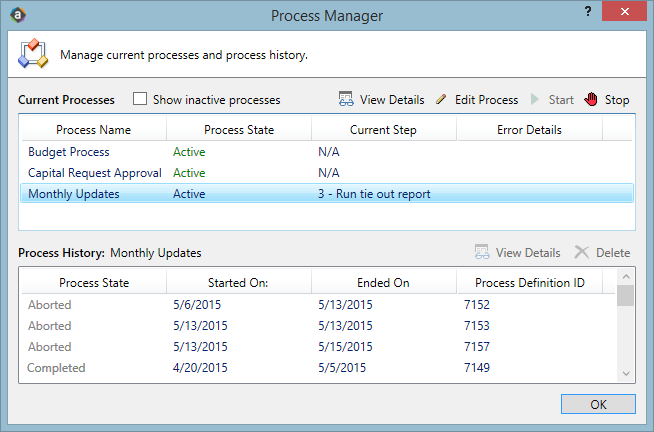
Example Process Manager dialog
Administrators and process owners can view the details for an active process, to see when each step was completed and by whom, as well as any comments added by users. You can also perform process administration tasks within this dialog, such as overriding step ownership, restarting stalled steps, and stopping the process.
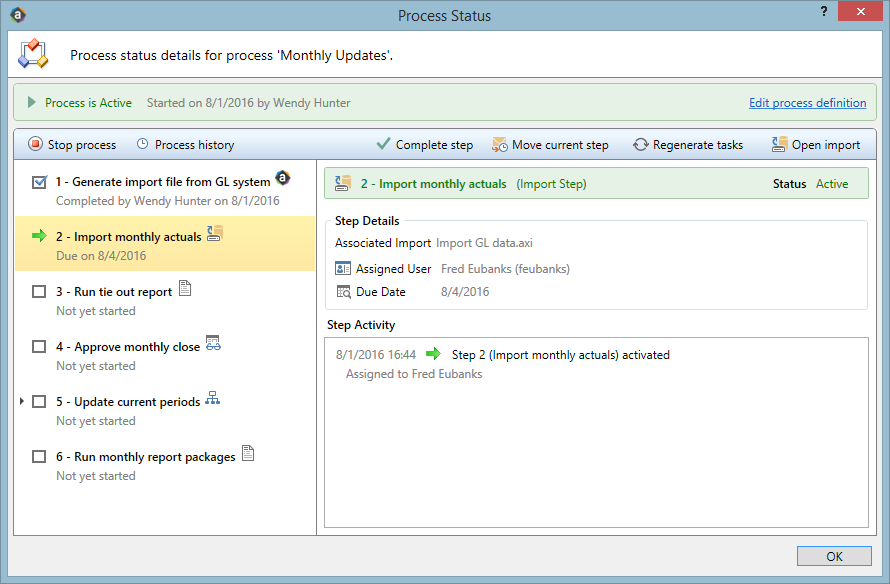
Example process details in the Process Status dialog
Administrators can view the historical details for any process. For example, if you have a process that you run monthly, you can go back and view the prior month's details, or any amount of history that you want to retain.
