AX1096
Step ownership and completing tasks
Each step in a process has an assigned owner or owners. When a step becomes active in a process, a task is generated for the assigned step owner (or owners). This user is expected to perform the task for that step, and then mark the step as complete by its assigned due date. This is done using the Process task pane.
If a user is the assigned owner of an active step, the process and the active step display in the Process task pane.
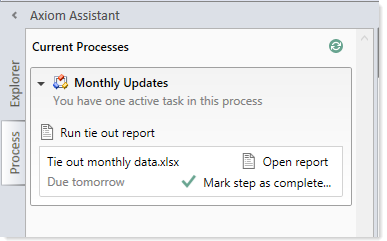
Example active task in task pane
This topic provides an overview of the step ownership experience, so that administrators understand how step owners work with steps.
Performing the task for the step
Each step in a process represents a task to be performed. This may be a task that the assigned user performs in Axiom Software, such as running an import, or a task that the user completes externally, such as obtaining the source file for the import from another system and saving it to the designated location in the organization's file system. The task may be simply to confirm that the process is ready to continue (an approval step).
The step display text and description should be defined so that the assigned user clearly understands what they are expected to do to complete the task. In some cases, the step may have an associated "action", such as the Open report button in the example screenshot above. This is provided as a convenience, so that the user can easily access features that are related to the task. However, once the file or feature is open, it is up to the user to decide what to do with that file or feature in order to perform the task. Axiom Software does not perform any validation before allowing a step to be completed; it is up to the assigned user to determine that the step is complete.
Marking a step as complete
Once the user has completed the task to their satisfaction, they can mark the step as complete by clicking the button in the task pane. This opens the Process Action dialog, so that the user can confirm that they want to complete the step, as well as enter any step comments.
This dialog displays slightly differently depending on step type. Most steps will display as follows, showing a step progression diagram for context:
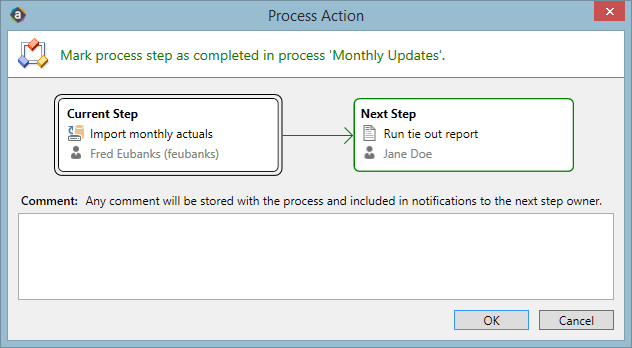
NOTE: If the step is part of a Parallel Subprocess, then the step progression diagram is not displayed, because the process does not continue to the next step until all steps in the subprocess are complete. The user is simply informed that they are completing the current step.
Certain step types have slightly different step completion behavior. For example:
-
If the step is an Approval Process Step, then the Mark step as complete button does not display in the task pane. Instead, the user can click either Approve or Reject. If they click Approve, the step is completed and the process moves to the next step. If they click Reject, the process is moved back to the prior step.
-
If the step is a Scheduler Process Step, then the step displays in the Process task pane for information only, because the step will be processed and completed automatically by Axiom Software. However, if the Scheduler job experiences errors, then the user has various options to restart the job or to manually mark the step as complete if the job does not need to be re-run.
- If the step is a File Group step that creates a new file group and that file group is referenced by subsequent steps, then the user must specify the file group that was created as a result of the step.
In most cases, the current, next, and prior step owners show in the completion dialog. Prior steps and their owners only show when the task can be rejected back to the prior step. However in some cases, it is not possible or feasible to show the step owners. For example, if the next step in the process is a subprocess that may resolve to multiple steps with multiple possible owners, then Axiom Software does not attempt to show the next steps or their owners. Instead it displays the name of the subprocess and that there will be "(multiple step owners)".
Once the step is completed, the process will no longer display in the user's Process task pane (unless the user is also the step owner of the next step). If the user has no active tasks in any processes, then the Process task pane will be empty for the remainder of the current session, and will not open the next time the user logs in (unless the user has been assigned a new active task in the meantime). Exceptions are as follows:
- Process owners see the process in their Process task pane as long as the process is active.
- The Process task pane is visible to administrators as long as any process in the system is active.
If necessary, an administrator or the process owner can mark a step as complete. For example, imagine that the assigned user already performed the necessary task but then left on vacation before they marked the step as complete. The administrator can mark the step as complete so that the process can continue. In this case the process history will reflect both the original assigned owner, and the fact that the administrator completed the step.
