AX1118
Viewing and completing process tasks using the Process task pane
The Process Management feature can be used to manage and track any Axiom-related process. A process is a series of defined steps that represent the tasks to be completed. If you are the assigned owner of a step in a process, then it is your responsibility to perform the necessary task and mark the step as complete by the specified due date. You can do this by using the Process task pane.
The Process task pane displays automatically when you are the owner of an active step in a process. The task pane displays one or more processes in which you have active tasks. The process summary displays the process name and the number of active tasks you have in the process.
NOTE: The Process task pane is available by default, but may be disabled or customized in your system.
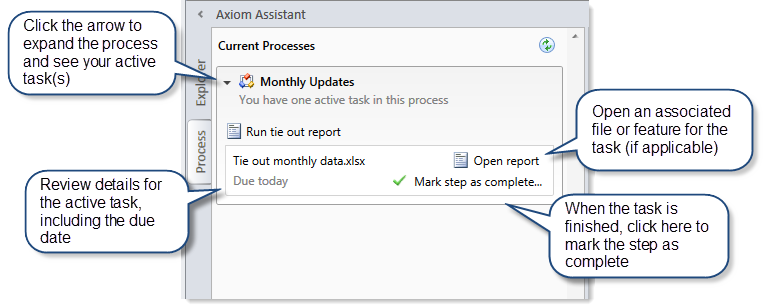
To view your active tasks in a process, click the arrow button on the left-hand side to expand the process (or double-click the process summary). Your active task(s) are listed underneath. For each task you can see the step name, the due date, and any additional details about the step. The following screenshot shows an example Process task pane with an active task:
Using the Process task pane, you can do the following:
-
Open associated files and features: Some tasks may have a link to an associated file or feature, to help you perform the task. Other tasks do not have these links. If no link is present, then you will need to manually navigate to any file or feature needed to perform the task.
-
Complete the step: When you have finished your task, you must mark the step as complete. In most cases you do this by clicking Mark step as complete.
However, there is also a special type of step known as an "approval step." In this case you must indicate whether you approve the process to continue by clicking either Approve or Reject. Approve means that the process will move to the next step, and Reject means that the process will return to a prior step.
-
View the entire process: By default, only your active step is shown in the task pane. In some cases, you may have the option to view all steps in the process, so that you can see how your active step relates to the overall process. If this option is present in the task pane, then click Show process view to see all steps in the process, including previously completed steps and steps to be performed in the future. This view is for information only; you cannot complete steps in Process View. To return to Task View, click Show task view. Process View is only available to step owners if the process has been configured to allow access to it.
 Step types
Each step listed in the Process task pane has an icon that indicates what type of step it is.
| Icon | Step Type | Description |
|---|---|---|
|
|
Approval |
This step requires you to approve the process to continue to the next step, or reject the process to return it to a prior step. |
|
|
Edit Plan File |
This step requires you to work on a plan file. |
|
|
File Group |
This step requires you to perform a task on a file group. |
|
|
Generic |
This step can require you to perform any kind of task. |
|
|
Import |
This step requires you to perform a task on an import. |
|
|
Multiple Approvals |
This step is a Multiple Approvals Step, which means that all the sub-steps underneath it can be performed in any order instead of sequentially. You may be responsible for one or more sub-steps of the subprocess. NOTE: This icon only displays in Process View, where you can see the parent step as well as all sub-steps. Parent steps do not display in Task View; only currently active sub-steps show. |
|
|
Parallel Subprocess |
This step is a Parallel Subprocess, which means that all the sub-steps underneath it can be performed in any order instead of sequentially. You may be responsible for one or more sub-steps of the subprocess. NOTE: This icon only displays in Process View, where you can see the parent step as well as all sub-steps. Parent steps do not display in Task View; only currently active sub-steps show. |
|
|
Report |
This step requires you to perform a task on a report. |
|
|
Scheduler |
This step automatically runs a designated Scheduler job. The status of the job displays in the task pane for your information only. Under normal circumstances, you do not need to do anything to complete this step, all job processing and step completion occurs automatically. |
|
|
Table |
This step requires you to perform a task on a table. |


With the exception of the Scheduler step type, keep in mind that Axiom Software does not automate any of the tasks. Although a file or feature may be associated with a step, it is still up to you to use that file or feature as necessary to perform the task. Other tasks may not be associated with any file or feature, and it is up to you to perform the task as necessary.
If you are unclear what needs to be done to perform the task, make sure to review the step description (in the step tooltip) and then contact your system administrator if you have any further questions.
Completing steps
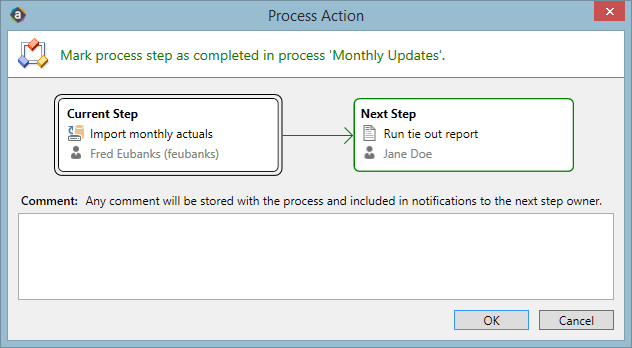
To complete a step, click Mark step as complete (or click Approve / Reject if the step is an approval step). This opens the Process Action dialog.
The diagram at the top of the dialog shows the current step, the next step, and the previous step (when rejecting only). If you are completing or approving the current step, the process will move forward to the next step. If you are rejecting the current step, the process will move back to a prior step.
If desired, you can enter a comment into the Comment box. This comment will be saved in the process history, and in most cases will also be included in the notification to the next step owner (if notifications are enabled).
NOTES:
-
If the step you are completing is a child approval step of a multiple approvals step, then the "next step" is the top-level step that comes after the multiple approvals step. However, there may still be other active child approval steps that need to be completed before the process moves to that next top-level step. If you approve the step and enter a comment, the comment will be included in the notification to the next step owner once all of the child steps are complete.
-
If the step you are completing is part of a parallel subprocess, then only the current step displays at the top of the dialog. This is because the parallel steps can be completed in any order, and completing the current step will not necessarily move the process to the next step (that will only happen when all of the parallel steps are complete). In this situation, any comment entered is only saved in the process history, it is not included in an email to the next step owner.
-
If the step you are completing is a File Group step that involved cloning a file group, and the new file group is referenced by subsequent steps, then you must specify the name of the file group that was created as a result of the step. Axiom Software will attempt to guess the correct file group; if the guess is not correct then you can use the drop-down list in the step completion dialog to specify the correct file group. The dialog will only list clones of the target file group for the step.
-
If you are the assigned owner of a Scheduler Process Step, then by default you do not need to do anything to complete the step—it will be completed automatically if the Scheduler job processes without error. However, if the job experiences errors then you will have the options to Restart scheduled job (assuming that the issue that caused the error has been resolved) or to Mark step as complete (assuming that the job does not need to be run again in order to consider the step completed).
If the step you completed was your only active task, then the Process task pane will be empty for the remainder of the current session, and will not open the next time you log in (unless you have been assigned a new active task). The task pane will remain open if you have other active tasks in this process or another process, or if you are an administrator. The Process task pane is available to administrators as long as any processes are active.
Completing steps for multiple plan files
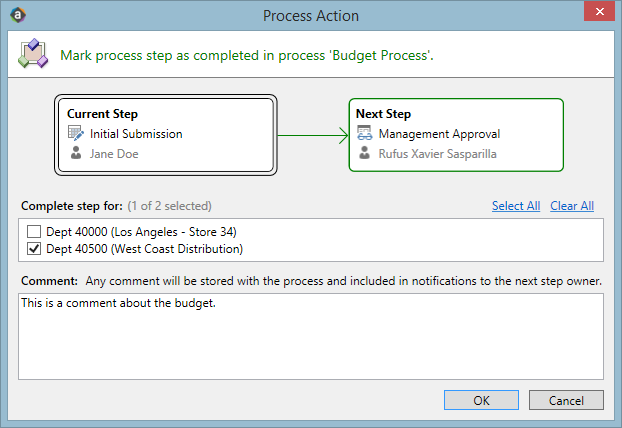
If the process is a plan file process, then the steps in the process are performed for each individual plan file in the file group. In this case, you may be responsible for completing the task for multiple plan files.
If you are responsible for multiple plan files, then those files are listed with check boxes in the Process Action dialog. You can select one or more check boxes to complete the step for those plan files.
Administrator features
If you are an administrator, then by default the task pane shows all active processes for which you have an active task, as well as all active processes for which you are the process owner. If desired, you also have the option to change the view to show all active processes. At the top of the task pane, use the Show all processes toggle to see all active processes. To go back to only viewing your processes, click Show my processes only.
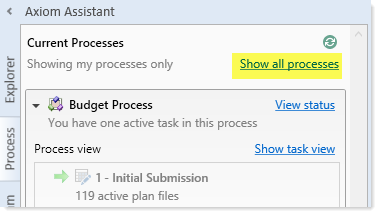
Administrators and process owners can also perform the following actions in the task pane:
- Click View status to view the Process Status dialog for the process.
- Right-click a process and select Stop Process to stop the process.
- Toggle between Show process view and Show task view. However, if you do not currently have any active tasks in the process, then you can only use Process View.
