Set up Month End Variance comment alerts
Administrators and analysts use the Variance Comments Collection Setup Utility to configure variance comment alert threshold levels for the Month End Variance report. Threshold levels determine how much an entity or metric can vary from the compared forecast or past actuals before users are required to enter comments explaining the variance.
IMPORTANT: You will need to configure this report each month.
To configure variance alert flag thresholds:
-
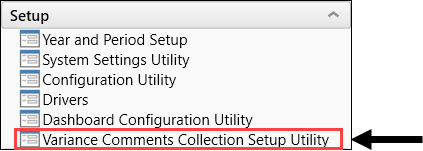
In the RF Admin task pane under Setup, double-click Variance Comments Collection Setup Utility.
-
In the top section of the utility, from the Select Actual Period drop-down, select the period of actuals to be compared.
NOTE: When you select an actual period, the month and year that the period represents display in parentheses next to the drop-down list name. In the following example, the selected period is the sixth period in the fiscal year, which is December 2020.

- From the Select Comparison Type drop-down, select whether to compare the selected period to a forecast period or to a past actuals time frame in months:
Forecast – Compares the actuals period to a forecast of the actuals period for a selected forecast year. If you select this option, a drop-down for selecting a forecast period displays. From the Select Forecast RFPeriod drop-down, select the forecast month.
NOTE: When you select a forecast period, the month and year that the period represents display in parentheses next to the drop-down list name. In the following example, the selected forecast period is the fourth month in the 2020 fiscal year, which is October 2020.

NOTE: You may have more than one forecast period to select from, depending on whether or not you forecasted for the selected actual period more than once.
- Three Month Average – Compares the actuals period to the last three months, which includes the actuals month you selected. For example, if your selected actuals period is April 2020 (202004), the three months used in the average will be April, March, and February of 2020.
- Last Month – Compares the actuals period to the month just prior to the actuals period.
- Same Month Last Year – Compares the actuals period to the same month of the previous year.
- In the table, expand the General Threshold Levels section.
-
In the Summary subsection, for each item listed:
-
In the Min Yellow, Max Red, and Threshold Red columns, set thresholds that will trigger alert flags in the variance report.
NOTE: To enter a negative number, enter a minus sign (hyphen) before keying in the amount. Negative percentages are displayed between parentheses: (1%).
-
In the Level of Comments column, select whether to collect comments at a summary or detail level.
-
For items set to summary comments, in the Summary RFCODE column, select the RFcode from the drop-down.
-
-
In the Detail Level subsection, for each item listed, set the Min Yellow, Max Red, and, if applicable, the Threshold Red percentage that will trigger alert flags. The alert flags are described in the following table:
Alert flag Description 
Displays for a metric if the variance % is greater than or equal to the value in the Min Yellow column. Trend is favorable. 
Displays for a metric if the variance % is less than the Min Yellow amount and less than the Max Red, and the trend is flat. 
Displays for a metric if the variance % is greater than the Max Red, the trend is down, but comments are not required. 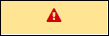
Displays in a yellow rectangle if the variance % is greater than the Max Red, the trend is down, and comments are required. -
In the Per Unit Level section:
-
In the Activate the Comments for below metrics? drop-down, select Yes to require comments, or No to not require them.
-
For each unit, set the Max Red level that triggers an alert, and then set a Summary RFCode if different from the default set in the Summary column.
-
- To create an entity exception when you want to set up thresholds for an entity that are different from the General Threshold Levels:
 Add and configure an entity
- On the left under the table header, click Add Entity Exception to Threshold Level Table.
- In the Choose an Entity to Add an Exception dialog, select an entity from the drop-down, and then click OK.
- Select the Min Yellow, Max Red, Threshold Red, Level of Comments, and Summary RFCODE as needed.
In the Detail Level and Per Unit Level subsections, select the Min Yellow, Max Red, and Threshold Red levels.
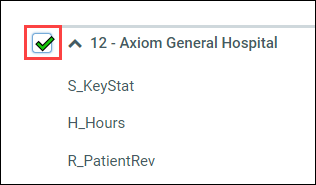
Delete an entityIn the delete column to the left of the entity, select the checkbox. The entity is deleted after you click Save.
-
Click Save, and then click OK in the confirmation dialog.
