Budget Variance visualization
Use Budget Variance visualization to identify how your actuals data performed compared to your budgeted data, and then analyze the variance between them. Using the visualization, you can analyze the data in a variety of ways, including drilling down on graphs and tables.
-
Select which data to explore and at what level.
-
View in-depth data by drilling on data points.
-
Review variance trends and identify the divisions, departments, and accounts that cause significant variances.
NOTE: Before you can view a visualization, you must process the data model on which the report is based. All calculations in the Budget Variance visualization are performed in the data model.
-
In the Web Client, navigate to the Intelligence Center.
-
In the Reports column, click the Budget Planning VI folder.
The following example of the Summary report tab provides an overview of the report’s main areas.
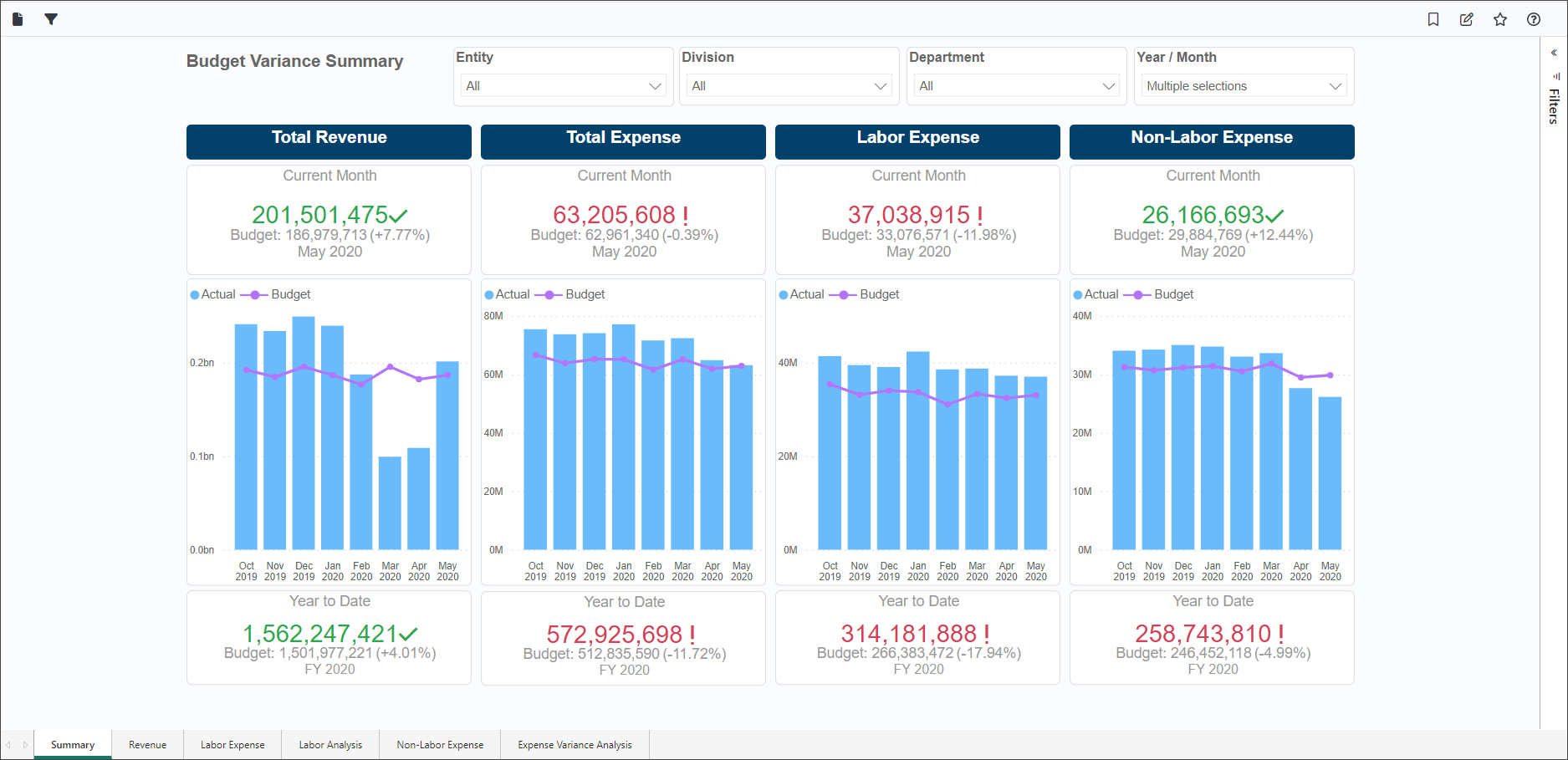
| Feature | Description |
|---|---|
| Report Settings and Filter Library icons | Customize the report, and save and apply filters. |
| Slicers |
Special filters for narrowing report data to the options selected from the Entity, Division, Department, and Year/Month categories. These slicers appear at the top of every tab in the report. Slicers are synchronized so that selections on one tab change data on the remaining tabs. You can make multiple selections from a slicer menu by pressing Ctrl while making selections. |
| Filters panel | Expand this panel to search for filters and create filters for your visualizations. |
| Report content | Reports can contain interactive graphs, KPI cards, and tables. |
| Reports tabs |
Contain report data specific to the tab’s category. |
Learn more about Budget Variance visualization:
-
Visualization tools
Use the slicer menus to select one or more data slices to include in the visualization:
-
Entity
-
Division
-
Department
-
Year/Month
These data filters are displayed on each tab of the report. Selections you make from filters on one tab are repeated on all other tabs to easily view how your selections affect all data categories in the report.
The graphs and amounts automatically adjust to your selections.
-
For most filters, All is selected by default.
-
To select an individual item, click the item.
-
To select more than one item, hold down the Ctrl key while making your selections.
Permissions for viewing the Budget Variance visualization depend on your user role and the data tables to which you have permissions. For example, you need permissions to view GL data. The Administrator uses the Security Manager to add users to roles. Refer to Managing users and roles and related topics under Security.
