AX1019
Once you have created a scenario, you can work with it just like any other file group, with a few exceptions. The intended purpose of a scenario is to allow you to make modifications to key file group assumptions, and then save that data to the database so that you can compare it to the source file group. You can create as many scenarios as needed to perform the desired analysis.
Accessing scenarios
Although scenarios are complete file groups with access to most file group functionality, they remain associated with their source file group. You can access scenarios using the Scenarios node of the source file group.
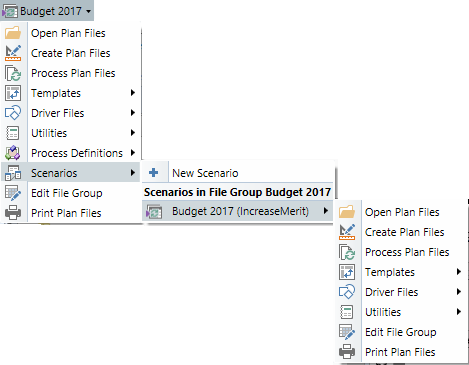
Example ribbon menu
The Scenarios node is limited to administrators and users with one of the following security permissions: Administer File Groups (for all file groups) or Modify File Group (for specific file groups). Other users will not see the Scenario menu option on the source file group. If other users need to access the scenario, then you can edit the Axiom ribbon tab (or any custom ribbon tab) to place it directly on the ribbon. This allows any user to access the scenario like any normal file group (assuming they have security permissions to the scenario file group).
Common scenario activities
In most cases, the workflow for a scenario will be similar to the following example:
-
You determine one or more assumptions that you want to model using a scenario. For example, what is the impact to the plan if salary increases are 4% instead of 2%?
-
You create a scenario for that file group, and then modify the assumptions as necessary to model the desired change. You might do this by changing the value of a file group variable for the scenario, or by editing values within the driver files of the scenario (or both).
-
You perform Process Plan Files on the scenario, to refresh the data for the changed assumptions and then save that data to the database. You can do this manually, or schedule it for processing using Scheduler.
- You create a report that compares the data in the source file group to the data in the scenario, to see the impact of your changed assumptions.
When you are done performing the analysis, you can delete the scenario or you can "promote" it to be a regular file group.
Limitations of scenario file groups
The following features cannot be used on scenario file groups:
- Once a scenario has been created, you cannot change its name or its display name.
- Certain table variable properties cannot be edited in the scenario. If a table variable does not resolve to a scenario table, then you cannot edit the Allow file group to save data to this table property. Additionally, you cannot edit the scenario cloning behavior (this simply does not apply to the scenario, because you cannot create a scenario of a scenario).
- You cannot create a plan file process for a scenario file group.
- You cannot clone a scenario file group.
- You cannot create a scenario of a scenario file group (but you can create multiple scenarios of the source file group).
If you want to use any of these features on a scenario, then you must convert it to a regular file group (thereby breaking the association between the scenario and the source file group).
