AX1116
Custom drilling example
This example is provided to help illustrate how custom drilling is set up and how end users interact with it. For this example, we want the custom drill to do the following:
-
Pass the filter criteria for the currently selected row in the source report, to be applied as a filter in the target report.
OR
- Allow the user to select a dimension or grouping to show the drill results at that level.
NOTE: In this particular case, the same end result could be achieved using the built-in drill-down features. However the goal of this example is not to show a typical use case for custom drilling, but rather to illustrate how to set up custom drilling to pass values from the source file to the output file.
Example report to be drilled (the source report)
This sample report uses an Axiom query to return rows by account. The in-sheet calc method in row 4 creates a filter criteria statement for each row (for example, ACCT.ACCT=4000 in row 10).
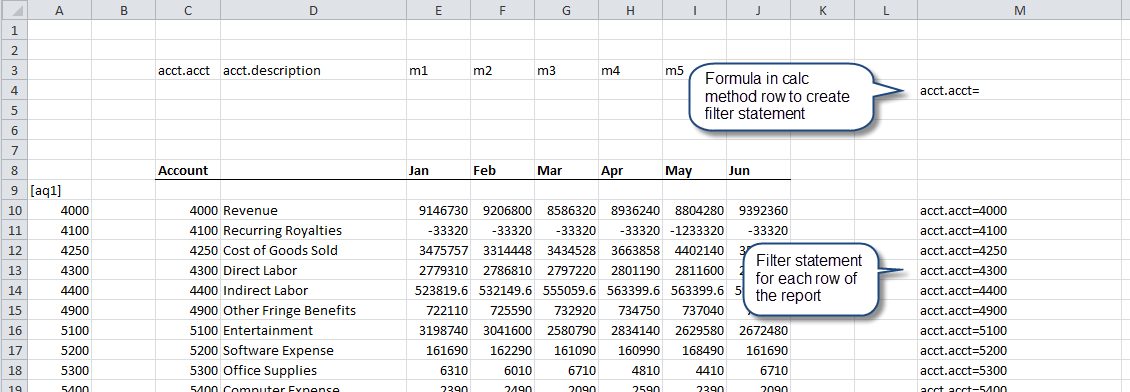
For drilling, we want to be able to pass a filter criteria statement to the target file based on the user's current row. To do this, we can use:
- Axiom's GetRowNumber("Active") function to identify the current row.
- Excel’s INDEX and INDIRECT functions to return the filter for the selected row.
The Drilling Control Sheet contains a sample function that you can use for this purpose. This function is located in row 4. By default, the function looks as follows:
=IF(F$1="","",INDEX(INDIRECT(F$1&"!A:A"),GetRowNumber("active")))
- The function uses an IF statement so that if no sheet name is entered into row 1 of the Drilling Control Sheet (in this example, checking cell F1), the function returns blank.
- Otherwise, GetRowNumber("Active") is used to identify the current row. The INDEX and INDIRECT functions are used to look up the current contents of that row in column A, on the sheet to be drilled.
In this case, the only adjustment that we need to make to this formula is to change the column A references to column M, because column M is where we have defined the filter criteria statement for each row.
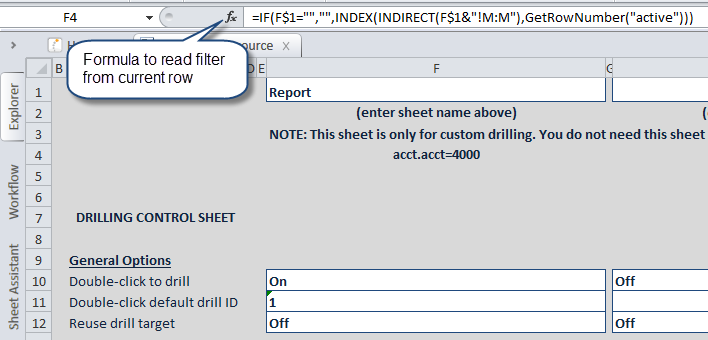
NOTE: You are not required to use this formula in row 4 of the Drilling Control Sheet. It is provided to give you a starting point to set up context-sensitive drilling. However, you can use any spreadsheet logic that you want in order to set up your custom drilling.
Configuring the drilling parameters
As discussed in the previous section, we have modified the formula in row 4 of the Drilling Control Sheet to return the filter for the current row. Now, we need to set up the drilling parameters to pass this filter to the target file, and also to pass the desired grouping level to the target file.
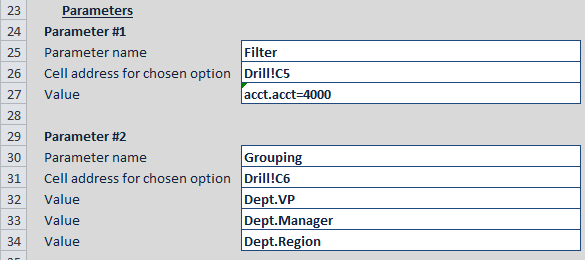
In this example, Parameter #1 is used to pass the drill filter. The Value cell points to the formula in row 4 to get the current filter. Drill!C5 is where we want to place the filter in the output file.
Parameter #2 is used to pass the desired grouping level. In this case the Value cells are hard-coded values, and the user will select the value that they want. Drill!C6 is where we want to place the grouping level in the output file.
Example drill results (the target report)
When the user initiates a drill (either by double-clicking a row or using the Drill menu), the Drill dialog presents the user with the list of options from Parameter #2. The user is not prompted to do anything with Parameter #1 because there is only one value to be passed and therefore it is used by default.
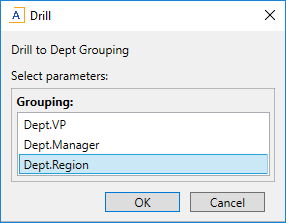
The default filter value (for example: ACCT.ACCT=4000) and the selected grouping value (for example: DEPT.Region) are then passed to the target cell addresses on the drill target file. These values can then be used in the Field Definition Row of an Axiom Query, and for Axiom Query settings on the Control_Sheet of the drill target file.
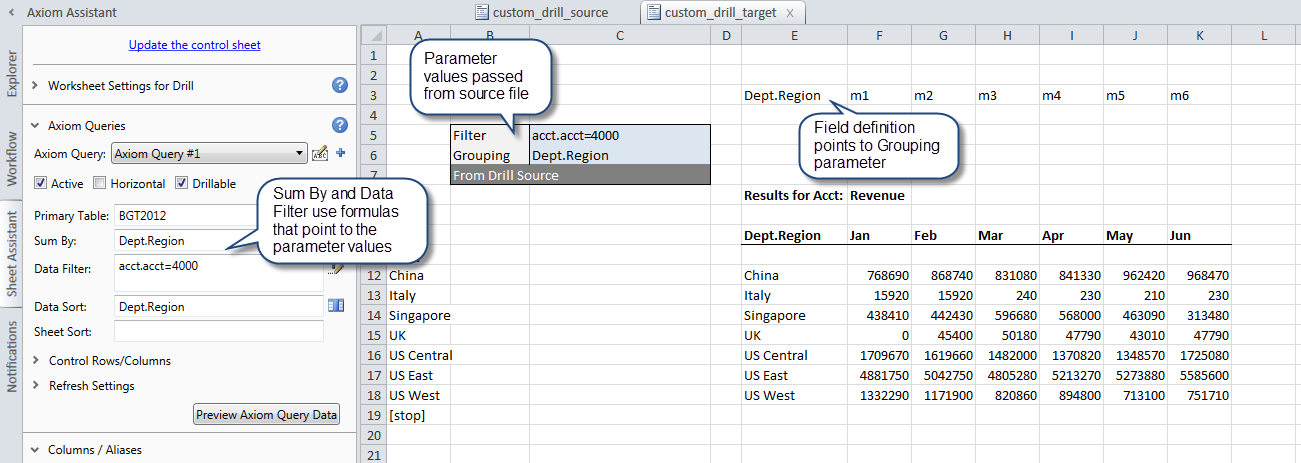
With these parameters the drill target file now contains the selected grouping and the drill filter for the row the user drilled on. Since the drill target file is another Axiom report, the format and structure can easily be customized to return data from the same table as the original report, or from another table or tables that relate to the selected row.
