For each step in a plan file process, each plan file must have an assigned owner to complete the step for that plan file. There are various options to assign the owner of each plan file, such as using a security role, an assignment column, or an assignment workbook. Assignments can also be made conditional based on some value associated with the plan file—for example, the ownership assignment for a capital request can be different based on whether the total value of the request exceeds a certain amount.
When a plan file becomes active in a step, the assigned owner is notified that they have a task to complete in the process (if notifications are enabled for the process and for the step). The owner can view the active task for the plan file using features such as the Process task pane or the Process Directory web page, open the plan file to edit or review it as appropriate, and then complete the task.
NOTES:
-
When using a Multiple Approvals step, ownership assignments are only made on the child Approval steps. The parent Multiple Approvals step does not have ownership assignments.
-
Step ownership in plan file processes can impact user permissions to plan files. Although step ownership does not grant access to plan files, it can elevate a user's existing access so that the user can complete the assigned process task. For more information, see How plan file processes and security interact.
Assigning ownership for each step
In the Edit Plan File Process dialog, step owners are assigned on the Process Steps tab, in the Assignments sub-tab. Select the step for which you want to assign ownership, then use the Assignment Type field to select the ownership type.
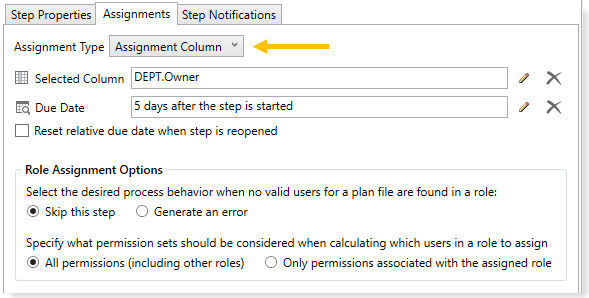
For plan file processes, the following assignment types are available:
-
User: A specific user is assigned as the owner of plan files for the step. Click the Edit
 button to the right of the Assigned User box to select a user. You can select any user in the Axiom system.
 -
Role: A security role is assigned as the owner of plan files for the step, so that users in the role are eligible to be step owners. Click the Edit
button to the right of the Assigned Role box to select a role. You can select any role in the Axiom system. -
Assignment Column: Ownership assignments are looked up from a table column in the plan code table. Click the Edit
button to the right of the Selected Column box to select a column. You can select any string column in the plan code table for the file group, or any string column in a table that the plan code table links to. -
Workbook: Ownership assignments are looked up from a workbook. Click the Edit
button to the right of the Selected Workbook box to select a file. You can select any file in the Reports Library or in the Utilities folder for the file group. Once you have selected a file, click the Edit button to the right of the Selected Worksheet box to select a worksheet. Axiom will look on this sheet to find the assignments. -
Process Initiator: The user who started the plan file in the process is assigned as the owner of plan files for the step. This option is only available for plan file processes in on demand file groups.
-
Conditional Assignment: Multiple assignments can be defined for the step, each with an associated condition. When a plan file becomes active in the step, the ownership assignment is determined based on the first matching condition. Selecting this option exposes various action buttons to create, edit, delete, and reorder the conditional assignments for the step.
Until a plan file process is active, you can edit step ownership settings as desired. Once the process is active, you can continue to edit ownership settings, and those changed settings will apply to plan files as they become active in the step. Any plan files that have already completed the step will not be affected, unless the step becomes reopened for that plan file. If you change the ownership settings while plan files are currently active in that step, then new tasks will be regenerated for those plan files as needed to reflect the new settings, including sending new Step Activated notifications (if enabled for the process).
Select User as the assignment type if you want to assign a specific user as the owner of plan files for the step.
This assignment type is less commonly used for plan file processes, because for most steps you want each plan file to have different owners. However, in certain cases it can make sense for all plan files to have the same owner. For example, you might have a "staging" step at the start of the process where all plan files are assigned to an administrator, so that the administrator can make sure that all plan files are ready to begin the process. Or you might have a "closing" step at the end of the process, so that an administrator can verify that all plan files have met all process requirements before officially completing the process.
Additionally, user assignments can be used with conditional assignments, so that only plan files that meet a certain condition are assigned to a particular user.
NOTE: If the assignment type is User but the assigned user is left blank, then the step will use the user designated as the Default Process Assignment as defined on the Process Properties tab. However, if the User assignment type is used as a conditional assignment, then the assigned user cannot be left blank.
Select Role as the assignment type if you want to assign a role as the owner of plan files for the step, so that step owners are dynamically determined based on the users in the role and their permissions to plan files.
For each individual plan file that becomes active in the step, all users in the role will be evaluated to determine if they have the security permissions to become a step owner for that plan file. If multiple users are eligible, then the plan file has multiple owners for the step, and any of those owners can complete the task. For more information on what makes a user eligible to be a step owner, see How plan file processes and security interact.
When the assignment is a role, the following additional options are available:
| Role Assignment Options | Description |
|---|---|
| Select the desired process behavior when no valid users for a plan file are found in a role |
Select one of the following:
|
|
Specify what permission sets should be considered when calculating which users in a role to assign |
Select one of the following:
In both cases, plan file permission sets are only considered for step ownership if Interacts with Process Management is enabled for the permission set. |
The Role Assignment Options are also available when the assignment type is Assignment Column, Workbook, or Conditional Assignment, because roles may be used in any of those assignment types.
Select Assignment Column as the assignment type if you want to store the ownership assignments for each plan file within a column in the plan code table (or a related table). For each plan code, you can list a single user name or a role name in the designated column, or indicate that the plan file should skip the step.
The specified column must be a string column, and must contain one of the following for each plan file:
- Text that can be resolved to a role name or a user name defined in Axiom security.
- The keyword
[skip]to indicate that the plan file should skip the step. Alternatively, empty string (blank) also causes the plan file to skip the step.
When attempting to match column values to user and role names, the following rules apply:
-
Role name. If the column value matches a role name, the role name is used.
-
User login name. If the column value does not match a role name, but it matches a user login name, the login name is used.
-
Combination of user first / last name. If the column value does not match a role name or a user login name, Axiom attempts to find a match based on the user's first and last name. For example, if a user's name is John Doe, a match would be found for assignments of "jdoe", "doej", "johndoe", and "doejohn". In this case, the match is only valid if only one match is found. If multiple potential matches are found, the assignment is not made.
If the column value cannot be matched to a user or role name (and is not blank or [skip]), then the plan file is stalled in the process.
NOTES:
- If the column value is edited when the step is already active, the change will not apply to the active task. You can use the Regenerate tasks feature in the Process Status dialog to regenerate tasks for the active step and pick up the changed assignments.
- Because the assignment column can contain role names, the Role Assignment Options also apply when an assignment column is used.
Select Workbook as the assignment type if you want to store the ownership assignments for each plan file within a designated sheet in a workbook. For each plan code, you can list a single user name or a role name in the workbook, or indicate that the plan file should skip the step. When a plan file becomes active in the step, the owner assignment is looked up from the sheet in the workbook.
In order to find assignments in the workbook, the designated sheet must be set up as follows:
-
The sheet must contain a
[ProcessAssignment]tag to define the control column and control row for the assignments. -
The control column must contain the plan codes for the ownership assignments. These codes must be placed below the
[ProcessAssignment]tag.For example, if the plan code table for the file group is DEPT, then the control column must contain the list of department codes. Typically, an Axiom query is used to populate the codes into the workbook.
-
The control row must contain the step name in brackets, such as
[Finance Review]. These tags can be placed either to the right or to the left of the[ProcessAssignment]tag. The column flagged with the step name must contain the assignments for that step.
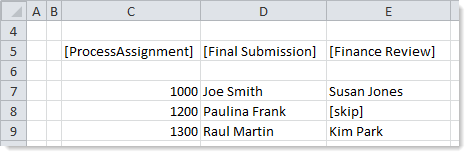
Example workbook assignments
When a task is ready to be generated for the step, Axiom checks the designated sheet in the workbook for the [ProcessAssignment] tag. If the tag is present, Axiom finds the step name in the control row and finds the plan code in the control column, and then uses the assignment in the intersecting cell.
The assignment must resolve to a valid role name or user name in Axiom security, using the same matching rules described for the Assignment Column option in the previous section. If you want a plan file to skip the step instead, leave the assignment blank for that plan file or enter the keyword [skip]. If the assignment cannot be matched to a user or role name (and is not blank or [skip]), then the plan file is stalled in the process.
You can use formulas within the workbook to determine if the assignment value for a plan file should be blank or [skip], or to determine who the owner assignment needs to be for a certain step. The workbook can query any data from the database in order to make this determination.
Each sheet in the workbook must contain only one [ProcessAssignment] tag. If multiple tags are present in a sheet, the first tag found will be used. However, the control row can contain entries for as many steps as necessary.
NOTES:
-
If tasks are being generated for a subset of codes, then Axiom automatically applies a filter to the workbook when it is opened. This filter limits any queries in the workbook to the codes for which tasks are currently being generated. For example, if a task is only being generated for Dept 1000, then the workbook is filtered by Dept=1000. This is done for performance reasons. If the conditional logic in the workbook depends on querying data related to codes other than the current code, then you can use the "ignore sheet filter" option for GetData functions to return this data.
-
If the assignment in the workbook is edited when the step is already active, the change will not apply to the active task. You can use the Regenerate tasks feature in the Process Status dialog to regenerate tasks for the active step and pick up the changed assignments.
-
Because the workbook can contain role names, the Role Assignment Options also apply when a workbook is used.
Select Process Initiator as the assignment type if you want the process initiator for each plan file to be the owner of the step. This option is only available for on-demand file groups.
For each individual plan file, the process logs the user who started the plan file in the process. In most cases, this is the user who created the on-demand plan file, since the plan file is automatically started in the process as part of the creation. For more information on how the process initiator is determined, see Setting the process initiator for plan files.
This assignment type is typically used for the first step of the process for on-demand file groups, so that the creator of the plan file is automatically assigned as the owner of the first step in the process. However, it can be used for other steps as needed.
Select Conditional Assignment if you want the assignment for plan files to vary depending on a defined condition. You then define multiple conditional assignments. When a plan file becomes active in the step, Axiom checks the plan file against these conditions, starting at the top of the list. If the plan file meets a condition, the plan file is given that assignment and no further conditions are tested. If the plan file does not meet any conditions, then the plan file skips the step and moves to the next step in the process.
To create a conditional assignment:
- Click Add Condition to open the Conditional Assignment dialog.
-
Complete the following fields and then click OK to create the conditional assignment.
-
Condition Name: Define a unique name for the conditional assignment.
-
Condition Filter: Click the Edit icon
to define a filter criteria statement using the Filter Wizard. The filter can use any column on the plan code table. -
Assignment Type: Select the type of assignment to associate with this condition filter: User, Role, or Assignment Column. The Workbook and Process Initiator assignment types cannot be used with conditional assignments.
-
Assigned User / Assigned Role / Selected Column: Depending on the specified assignment type, click the Edit icon
to select the user / role / column to use for this assignment.
-
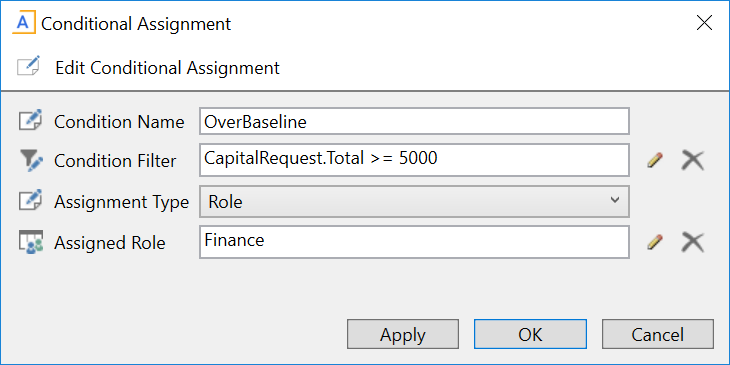
Example Conditional Assignment dialog using a role assignment
The defined conditional assignments are shown in a grid within the Assignments tab. In the following example, there are two conditional assignments. All plan files with less than 5000 in the Total column will be assigned to the Budget Managers role, and all plan files equal to or greater than 5000 will be assigned to the Finance role. You can define as many conditions as needed, and each condition can use a different assignment type.

You can work with existing conditional assignments by selecting a row in the grid and then doing one of the following:
- Click Edit Condition to edit the conditional assignment.
- Click Delete Condition to delete the conditional assignment.
- Click Down or Up to reorder the conditional assignment.
Once a plan file becomes active in the step and matches a conditional assignment, that assignment behaves in the same way as if it were assigned directly. See the previous sections for more details on how user, role, and column assignments work.
When a plan file becomes active in the step, the name of the conditional assignment that was used will be noted in the step details.

Example step details showing the conditional assignment that was applied to the plan file
Configuring plan files to skip steps
Certain steps in the process may only apply to a subset of plan files. If you want some plan files to skip a step, use the ownership assignments to achieve this behavior. The following assignment types support skipping steps:
-
Roles: If no users in the role are eligible to be the step owner for a plan file, the plan file will skip the step if the Role Assignment Options are configured to skip instead of error.
-
Assignment Column: You can enter the keyword
[skip]or leave the assignment blank to indicate that the plan file should skip the step. Additionally, if the column contains a role name, the plan file may skip the step as described for role assignments. -
Workbook: You can enter the keyword
[skip]or leave the assignment blank to indicate that the plan file should skip the step. Additionally, if the workbook contains a role name, the plan file may skip the step as described for role assignments. -
Conditional Assignment: If the matching conditional assignment for the plan file is a role or column, the plan file may skip the step as described for role assignments and column assignments. Additionally, if a plan file does not match any of the defined conditions, the plan file will skip the step.
