AX1614
Form state example
The following example illustrates how form state values can be set and passed between the active client spreadsheet and an Axiom form dialog or task pane. This is not a "real life" example; the intent is simply to show the basic concepts involved.
File setup
The active client spreadsheet contains GetFormState functions to define default form state values and to return values set by the Axiom form.
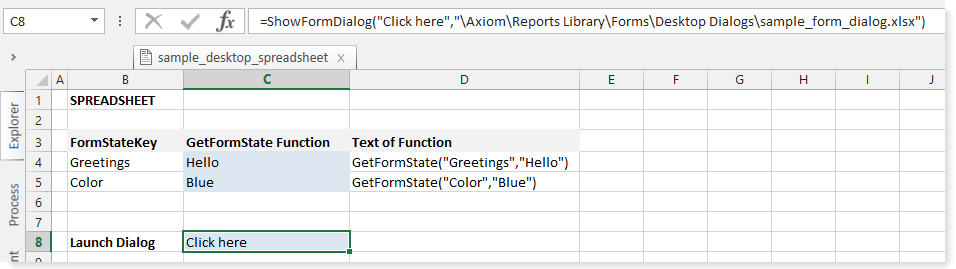
In this example, there are two form state keys, Greetings and Color. Cells C4 and C5 contain the actual GetFormState functions and define default values of "Hello" and "Blue" respectively. The actual text of the GetFormState functions are shown in column D for reference.
Lastly, cell C8 contains a ShowFormDialog function, which will be used to launch the Axiom form as a dialog. Although this is the approach that this example uses to launch the Axiom form, the same behavior would apply if the form was launched as a task pane (as an associated task pane for the file) or if the form was launched as a refresh form (using the [RefreshDialog] tag).
The Axiom form to be launched is set up as follows:
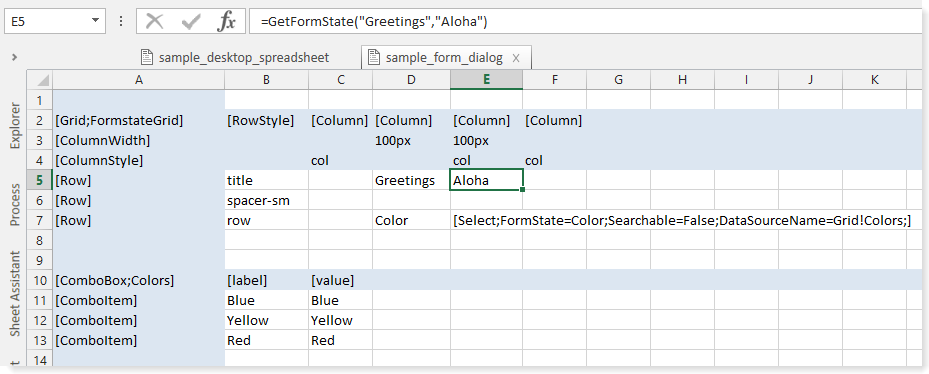
The form state key of Greetings will be returned into cell E5 using a GetFormState function. You can see that the formula here uses a different default value of "Aloha". The form state key of Color is used by a Select tag, as defined in cell E7. You can see that the Select tag is configured to store its value into FormState=Color instead of in a target cell. This means that the combo box for the Select tag will return the current value of Color, and it can be used to change the current value of Color. The data source for the Select tag is the ComboBox data source shown in the screenshot.
In this example, we are using a Formatted Grid component to display the form state values and to change the Color value (using the Select tag). We could have done the same thing by using a separate Label component and a ComboBox component, but it is easier to show the setup within a single grid. Also note that the form is only set up to read the Greetings value, not to change it. This is done to show both potential ways of using a form state value in an Axiom form. If desired, we could have set up the Greetings value to be changed as well (such as by using a TextArea tag).
In order to pass changed form state values back to the active client spreadsheet, the form must be set up with a Button component that uses the Apply Form State command. The following screenshot shows this button in the Form Designer:
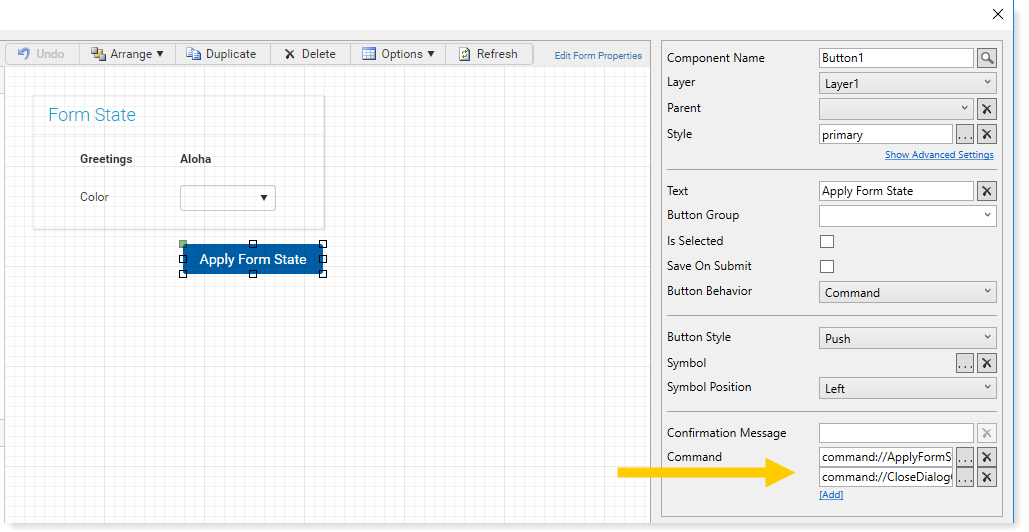
The button has two commands, Apply Form State and Close Dialog. Apply Form State is used to pass the current form state values to the active client spreadsheet, and to refresh the spreadsheet. The Close Dialog command closes the dialog when the process is complete, so that the user is now back within the active client spreadsheet. In this example, the button is named Apply Form State for clarity, but in real form dialogs it is more likely to be named something like OK or Apply.
Passing and changing values in the files
When a user double-clicks the ShowFormDialog function in the spreadsheet file, the designated Axiom form opens. As part of this process, the current form state values in the spreadsheet are passed to the form, overwriting any default values set in the form. So when the form is opened, it appears as follows:
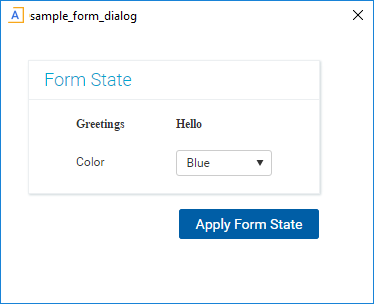
In this dialog, you can see that the "Hello" default value for Greetings from the spreadsheet has overwritten the "Aloha" default value in the form. If the spreadsheet did not have a defined value for Greetings, then the form would have started with Aloha instead. Similarly, the combo box for the Select tag currently displays the "Blue" default value for Color that was passed in from the spreadsheet.
Now the user can use the form to change form state values by using interactive components. In this example, the user interacts with the combo box to change the Color value from Blue to Red.
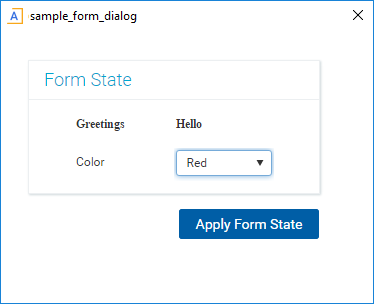
When the user is done changing values in the form, they click the Apply Form State button. This passes the form state values to the active client spreadsheet, and refreshes the spreadsheet. In the spreadsheet, the GetFormState functions now look as follows:
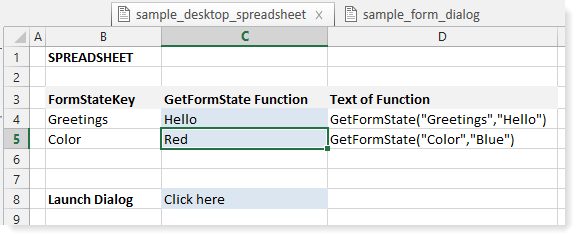
You can see that the GetFormState function for Color now returns Red, which is the value that was set in the Axiom form and passed to the spreadsheet. The spreadsheet's default value of Blue is now ignored. Because the Greetings value was not changed by the Axiom form, the GetFormState function for Greetings continues to display Hello.
If the user were to launch the form dialog from the spreadsheet again, now the current value of Red would be passed into the Axiom form, and the combo box would start with the value of Red. The user could change the value in the form again, and pass it back to the spreadsheet again.
If the spreadsheet is closed and reopened, the form state key of Color would revert back to the default of Blue. Whenever a file is closed, its form state memory is cleared.
This is a simple example, intended to illustrate the basic flow of form state values between the form and the active client spreadsheet. In real life, the form state keys and the passed values are likely to be values that impact data. The form and/or the spreadsheet would be configured to use the values in some way, such as to filter the results of an Axiom query.
