Filter contracts on the Contracts page
You can filter the list of contracts on the main Contracts page by contract name or by the latest expiration date.
To filter contracts:
-
If the desired simulation is not currently selected, select it from the simulation drop-down:
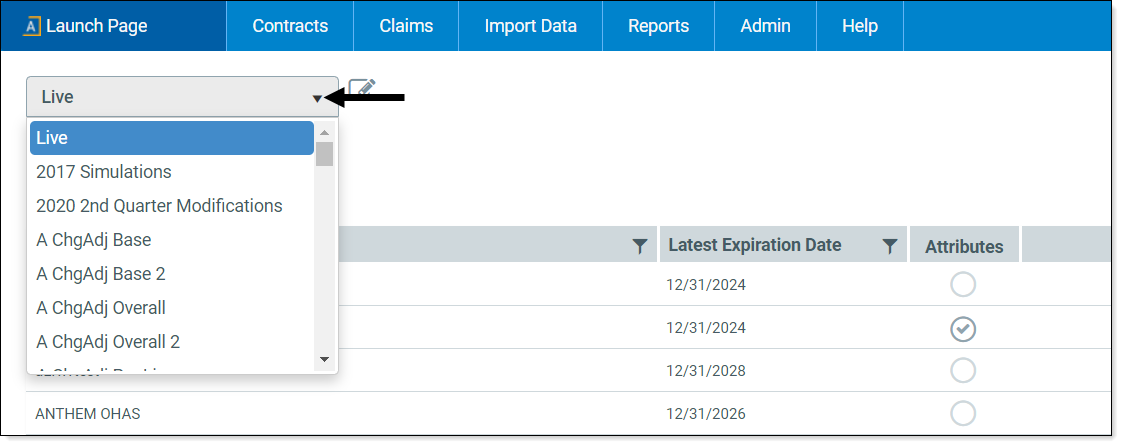
-
In the Contract Name column header on the right, click the Filter icon (
 ).
).NOTE: To filter by expiration date, click the filter icon in the Latest Expiration Data column header.
- In the filter dialog, from the drop-down, select the desired filter criteria. The default criteria is “Contains.”
- In the input field, type the item on which to search. For example, if you selected Contains as the criteria, type the word or phrase contained in the contract name you are searching for.
-
Click Filter.
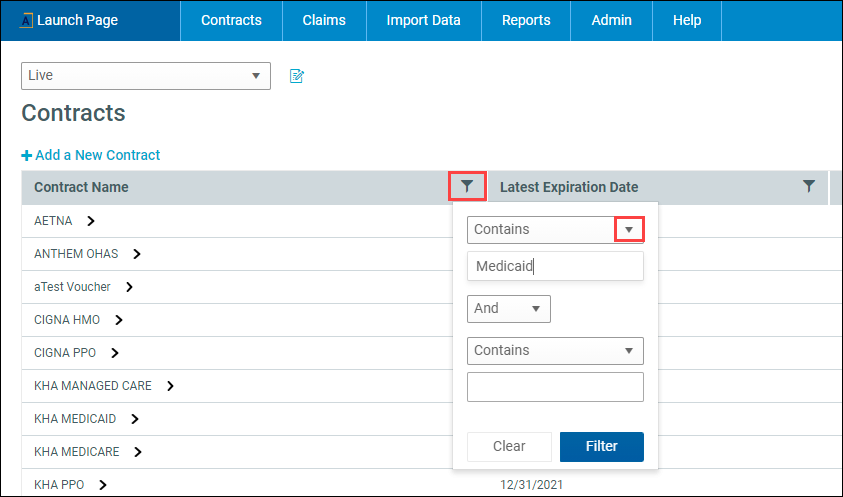
The filtered list displays contract names based on the criteria you specified.
- To clear the filter, click the Filter icon again, and then click Clear.
