AX1795
Installing the Axiom Software Client
This section explains the installation of the Axiom Software Desktop Client (Windows Client and Excel Client) on individual client workstations.
Before you install
Before beginning the client installation process, make sure you have installed the necessary prerequisites for the particular Axiom Software Client you intend to use.
-
Log into your workstation as a local administrator.
-
Launch Microsoft Edge or Internet Explorer 11 (or higher).
-
Browse to the following URL:
https://<customername>.axiom.cloudWhere <customername> is your assigned system name for the Axiom Cloud.
-
Click the menu icon
 in the right side of the navigation bar across the top of the page. At the bottom of the menu, click About Axiom Software.
 -
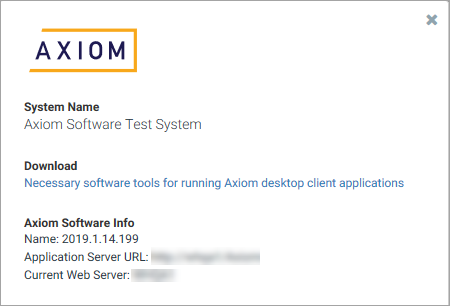
In the About Axiom Software dialog, under Download, click Necessary software tools for running Axiom desktop client applications.
-
From the Download page, install the necessary prerequisites for the Axiom Software Client that you intend to use.
See Client technical requirements for more information on which prerequisites to install.
Configuring Microsoft Edge to install and launch the Axiom Software Client
Microsoft is in the process of rolling out a new version of the Microsoft Edge browser. As of this writing, the new version of Edge does not support ClickOnce installation by default, the way that the old version of Edge did. In order to enable ClickOnce support and allow the Axiom Software Desktop Client to be installed and launched from the browser, you can adjust the configuration of Edge as follows:
-
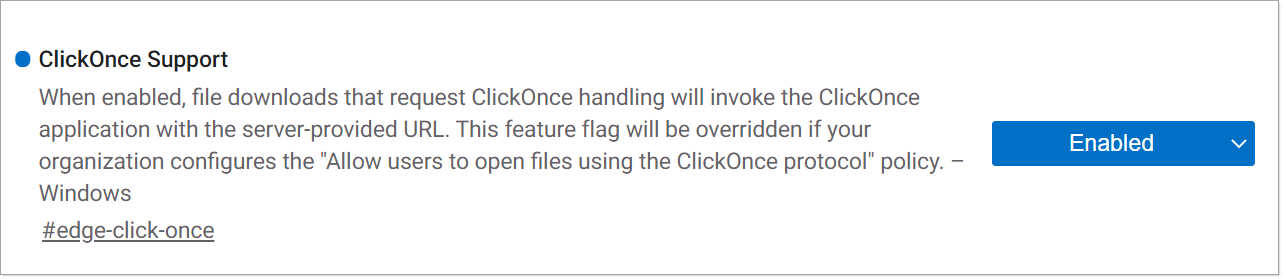
Launch the Edge browser. In the address bar, type
edge://flags.
-
Scroll down until you locate the item named ClickOnce Support. Select Enabled from the drop-down list.
- Close Edge and then reopen it. You should now be able to install or launch the Axiom Windows Client or the Axiom Excel Client from the browser.
Install the Axiom Software Client
-
Log into your workstation as yourself.
-
Launch Microsoft Edge or Internet Explorer 11 (or higher).
-
Browse to the following URL:
https://<customername>.axiom.cloudWhere <customername> is your assigned system name for the Axiom Cloud.
-
Click the rocket icon
 in the right side of the blue bar across the top of the page. In the Quick Launch menu, click on one of the following icons to install that client:
- Windows Client
- Excel Client
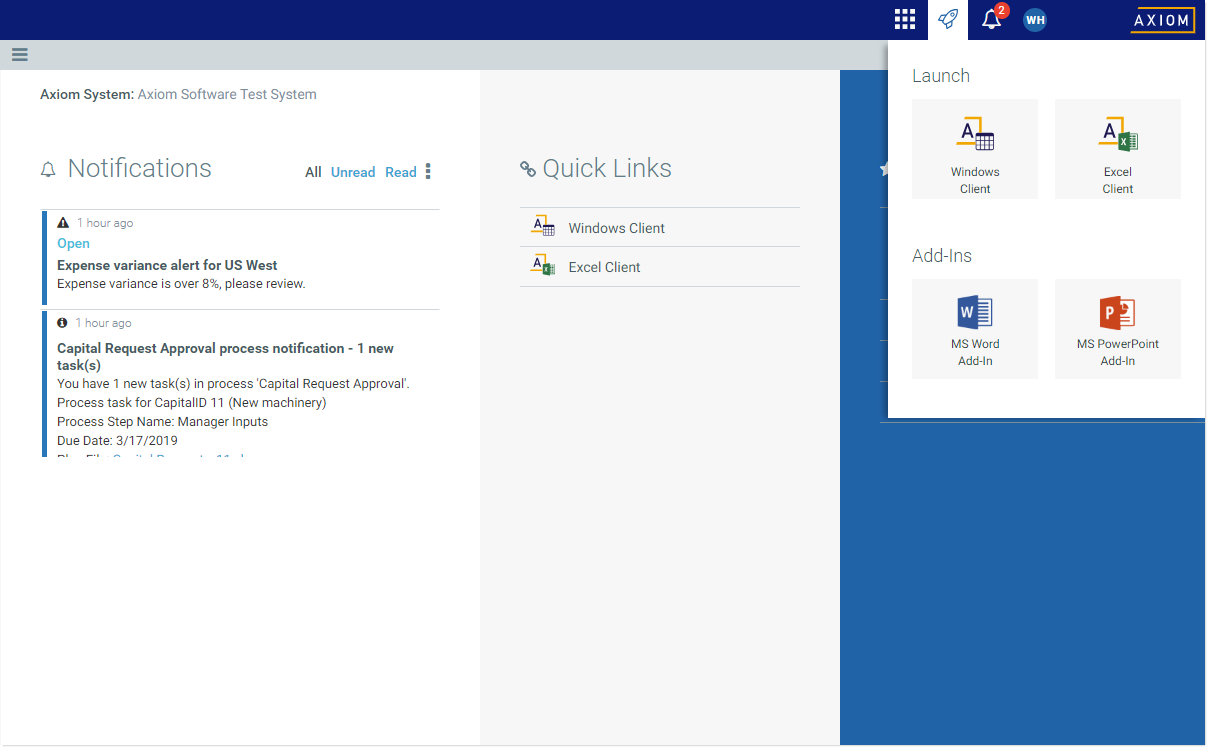
Example Quick Launch menu to install the Axiom Software client
Client shortcuts
Depending on the selected user authentication method for your system, the Axiom Software Client installation may create shortcuts on your desktop and in your Start menu. If these shortcuts are present, then you can launch the Axiom Software Client directly via these shortcuts, without needing to access the Axiom Software web page. If you are using SAML or OpenID Authentication, then you must always go to the Axiom Software web page in order to launch the system.
Upgrading the Axiom Software Client
Going forward, under normal circumstances you should not need to manually upgrade the Axiom Software Client. Your Axiom Cloud system can be upgraded by Axiom Support at your organization's request. Once the Axiom Cloud system is upgraded, your client installations will be automatically upgraded the next time a user attempts to log into Axiom Software on that workstation.
