AX1535
Viewing notifications in the Notifications panel
If you receive a notification, the notification will display in the Notifications panel. You can click the Notifications icon  in the Web Client container to open the panel.
If you have new, unread notifications when you first log in, or if you receive new notifications during a current session, a red number will display on the Notifications icon. Unread notifications are indicated by a blue bar along the left-hand side of the notification. Once a notification has been read, the bar is removed.
Notifications can come from the following sources:
-
Alert notifications. Your system administrators and other power users may have set up alerts to monitor certain alertable conditions and then notify specified users.
-
Process management notifications. These notifications result from active processes in process management, such as to inform you that you have a new task in the process.
-
Message stream notifications. If you have subscribed to a document's message stream, you will be notified of any new comments made about that document.
-
Axiom system processes such as Process Plan Files. If you have triggered certain system processes, Axiom Software will notify you when the process is completed or when errors occur.
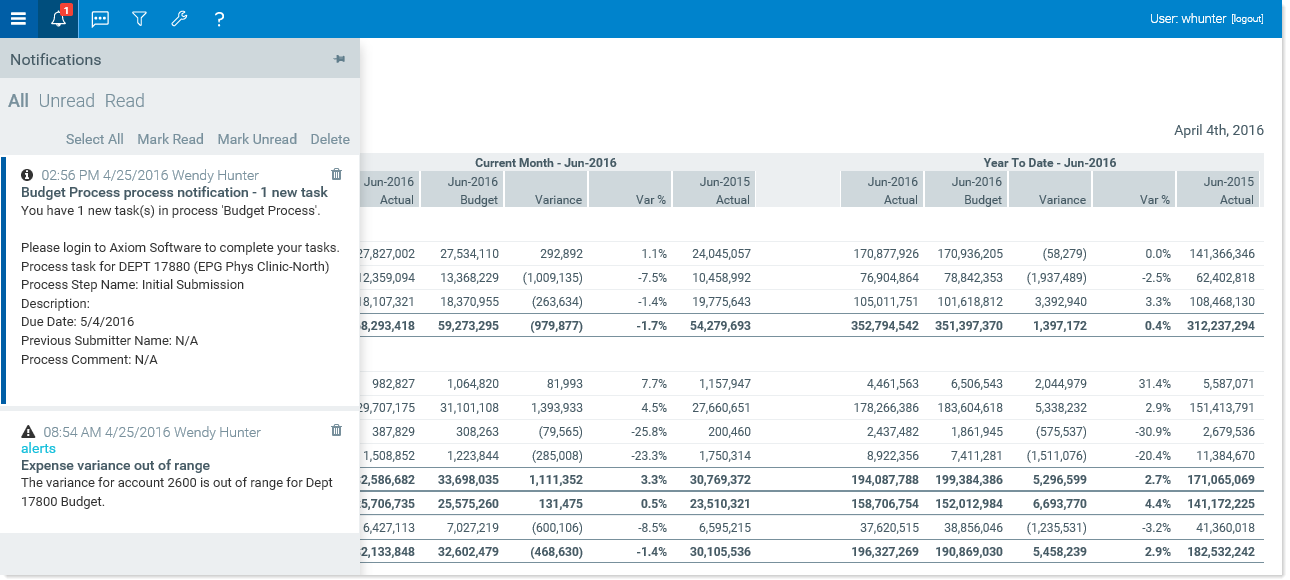
Example Notifications panel
NOTE: All notifications displayed in the Notifications panel are also available in the Notifications task pane of the Desktop ClientGeneral term for using either the Excel Client or the Windows Client, both of which are installed to the user's desktop.. Both areas read from the same source of notifications, and edit the same source as well. So if you mark a notification as read in one area, or delete a notification from one area, the other area will reflect these changes. For more information, see Viewing notifications in the Desktop Client.
Reviewing notifications
Within the panel, notifications are listed in the order they were received, with the newest notifications at the top. You can click the All, Unread, and Read links at the top of the panel to indicate which notifications you want to see in the panel. By default, the panel shows all notifications.
Notifications may display with the following icons:
|
|
Notification about a comment posted to the Message Stream. |
|
|
|
Notification with "information" priority. |
|
|
|
Notification with "warning" priority. |
|
|
|
Notification with "error" priority. |


If the notification contains more content than can be displayed within the panel view, then you can click the > symbol to open a dialog with the full notification text.
Additionally, some notifications contain links to documents that you can open for more information.
Notification actions
When you click on a notification, it is automatically marked as read. You can perform the following additional actions on notifications:
- Select All: Select all notifications that are currently showing in the panel.
- Mark Read: Mark the selected notifications as read.
- Mark Unread: Mark the selected notifications as unread.
- Delete: Delete the selected notifications. Keep in mind that once a notification has been deleted, you cannot undo this action.
AX1535